 Polly3D Documentation
Interface
Scene panel
The tree of everything in your scene: objects, groups, lights and materials.
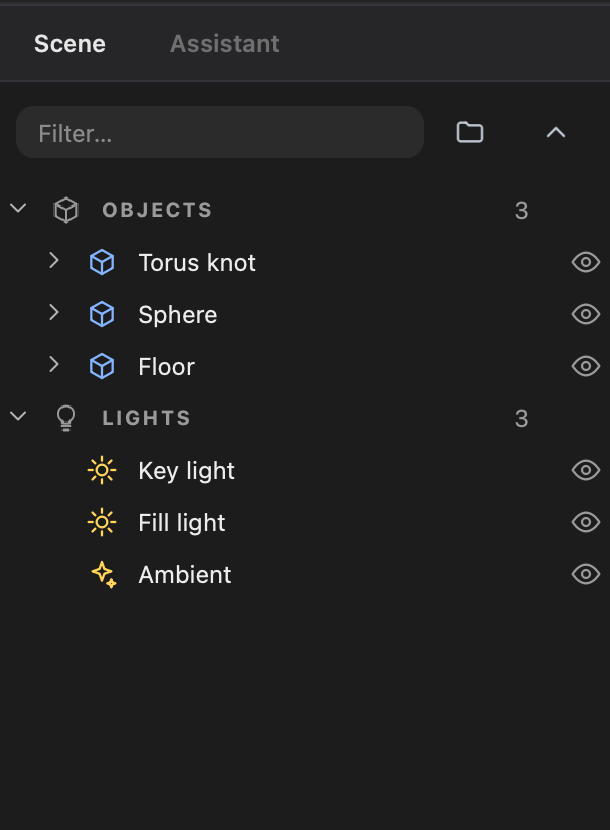
The Scene tab on the left lists the content of the scene as a tree, in two families:
- OBJECTS: groups, primitives, shapes, paths, text, imported models. Each object can be expanded to show its materials, with a color swatch.
- LIGHTS: the lights of the scene. The number next to each family title counts its items.
Working in the tree#
| Action | How |
|---|---|
| Select | Click a row. ⇧ / ⌘ + click for several rows, or drag across rows to sweep a selection |
| Rename | Double-click the name, or right-click > Rename |
| Show / hide | Click the eye at the right of a row. With several rows selected the eye acts on the whole selection |
| Reorder or re-parent | Drag a row onto a group. Objects keep their place in the world when moved between groups |
| Open a material | Click a material row: the Materials tab of the Edit panel opens on it |
| Apply a library material | Drag a card from the Library onto a row |
| Filter | Type in the Filter… field above the tree |
| New group | The folder button next to the filter (⌘ G groups the selection) |
| Collapse / expand all | The chevron button (Collapse folders / Expand folders) |
The Aux n badge next to an object means it is bound to an After Effects Aux channel.
The eye on a material row hides that material only (an object can have several).
The context menu#
Right-click a row:
- Rename, Duplicate (⌘ D), Group (⌘ G), Delete.
- Hide / Show.
- Frame: frame the object in the viewport.
- Move in hierarchy.
- Replace model… for imported models: swap the geometry and keep materials and placement.
- Show in Finder for imported models.
- Copy material / Paste material / Save material… on a material row (save it in your library).
If an imported model's file has moved, its row shows File not found.
The Assistant tab#
Next to Scene, the Assistant tab is the activity log of the AI assistant: each action an assistant takes appears here. The button at the top opens the MCP Settings. Clear list empties the log. The conversation itself stays in your assistant application.