 Polly3D Documentation
Materials overview
A material is a stack of layers. Learn how layers combine, blend and share.
A material in Polly3D is a stack of layers. Each layer does one thing — a flat color, a gradient, an image, a reflection, a glow on the edges, a glass look — and the layers combine from top to bottom into the final surface. You build the look by stacking and ordering layers, the same way you would in a compositing application.
The stack#
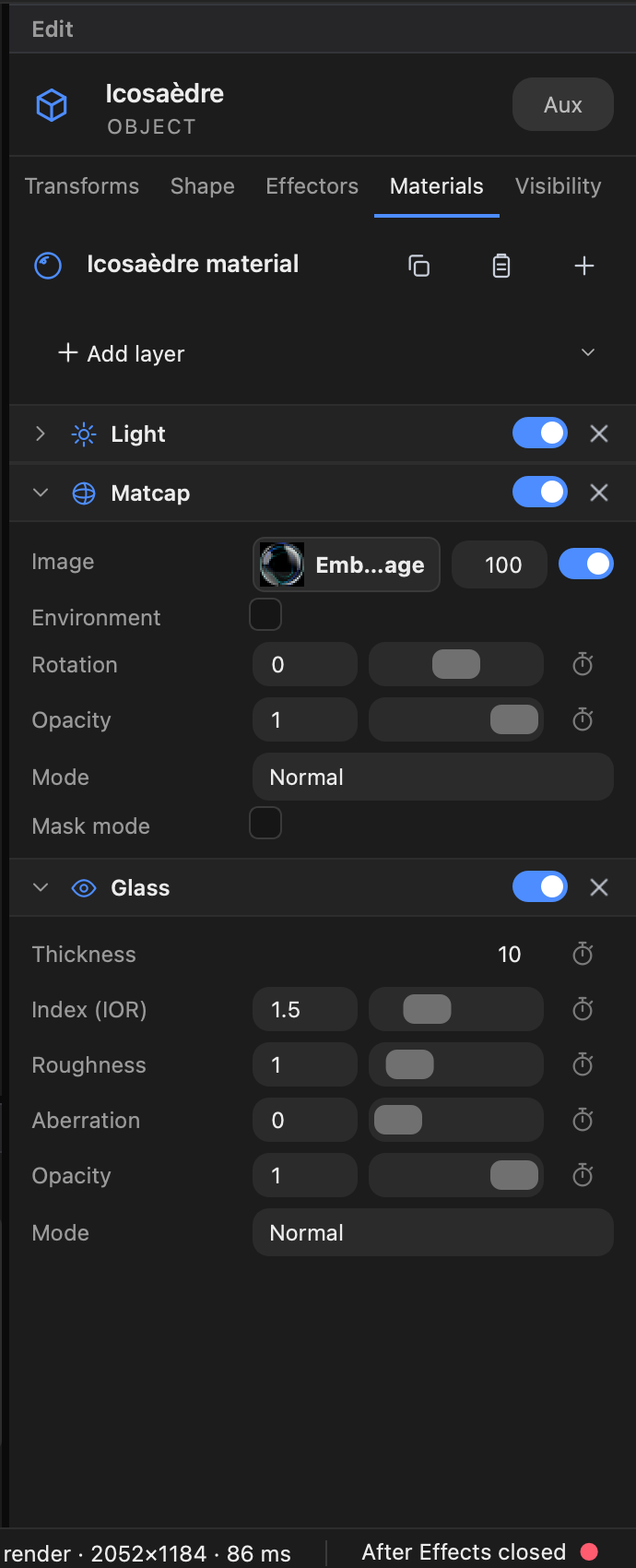
In the Materials tab of the Edit panel:
- Add layer opens the list of layer types.
- Each layer is a collapsible section. Its switch enables it, its X deletes it. Its title has a right-click menu (Copy values, Paste values, Reset to default) and layers can be Duplicated or moved up and down.
- The order matters: a layer placed higher in the list acts on the ones below it.
Opacity and blend mode#
Every layer (except Glass, Environment and Bump) has:
| Setting | Values |
|---|---|
| Opacity | 0 to 1 |
| Mode | Normal, Multiply, Screen, Overlay |
Mask mode#
For Gradient, Texture, Matcap, Fresnel, Rainbow, Noise, Depth, Pattern and Dust, Mask mode turns the layer into a mask: its greyscale (white shows, black hides) masks the layer directly below it. It is the way to reveal a color only on the edges, or only where a noise is bright.
Light and Glass: one each#
A material can have at most one Light layer (the lighting model: roughness, metalness, emission) and one Glass layer (the effects layer). The Add layer menu will not offer them a second time.
A surface without a Light layer is shown as is, without being lit (flat). Most materials start with a Light layer at the top of the stack.
Layer types at a glance#
| Layer | Use it for |
|---|---|
| Light | The lighting model: roughness, metalness, emission. One per material |
| Color | A solid color |
| Gradient | A gradient across each face (linear, radial, angular) |
| Texture | An image mapped with UV (repeat, offset, tint) |
| Matcap | The reflection of a lit sphere image: instant metals, clay, pearls |
| Environment | A panorama that lights and is reflected by this material alone |
| Fresnel | A glow on edges seen at a grazing angle |
| Rainbow | Iridescence, like a soap bubble or an oil film |
| Noise | Procedural noise between four colors (clouds, marble, cells) |
| Reflection | Reflections of the scene on the surface |
| Glass | The glass look: refraction, blur, aberration. See Glass |
| Dust | A layer that settles on upward-facing surfaces |
| Depth | Color by distance from the camera or a point |
| Normals | Color by face direction |
| Pattern | Circles, rings, checker, lines, waves… |
| Toon | Cartoon (cel) shading with flat bands |
| Outline | An outline around the object, and contour lines |
| Bump | Deforms the surface with noise |
All the settings of every layer are in the Layer reference.
Sharing a material between objects#
Several objects can share one material: change it and all the objects that use it change. A duplicated object gets its own copy. To use the same material elsewhere:
- drag a card from the Scene materials tab of the Library onto another object;
- or use Copy material / Paste material (which copies the values: the two materials are then independent).
Several materials on one object#
An imported model can have several materials. The Materials tab then shows a list of them at the top; the Scene panel lists them under the object, each with its own eye.
Animating a material#
Every numeric value of a layer has a stopwatch. Click it to link the value to a Connector (an After Effects slider) or a driver (a value that moves with the clock by itself). A link belongs to the material: every object that uses the material follows it.
Starting points#
You rarely start from zero: the Material library has about 150 ready-made materials, and Recipes gives starting values for plastic, metal, neon, soap bubble and more.