 Polly3D Documentation
Interface overview
The window, the toolbar, the panels and the two working modes of Polly3D Studio.
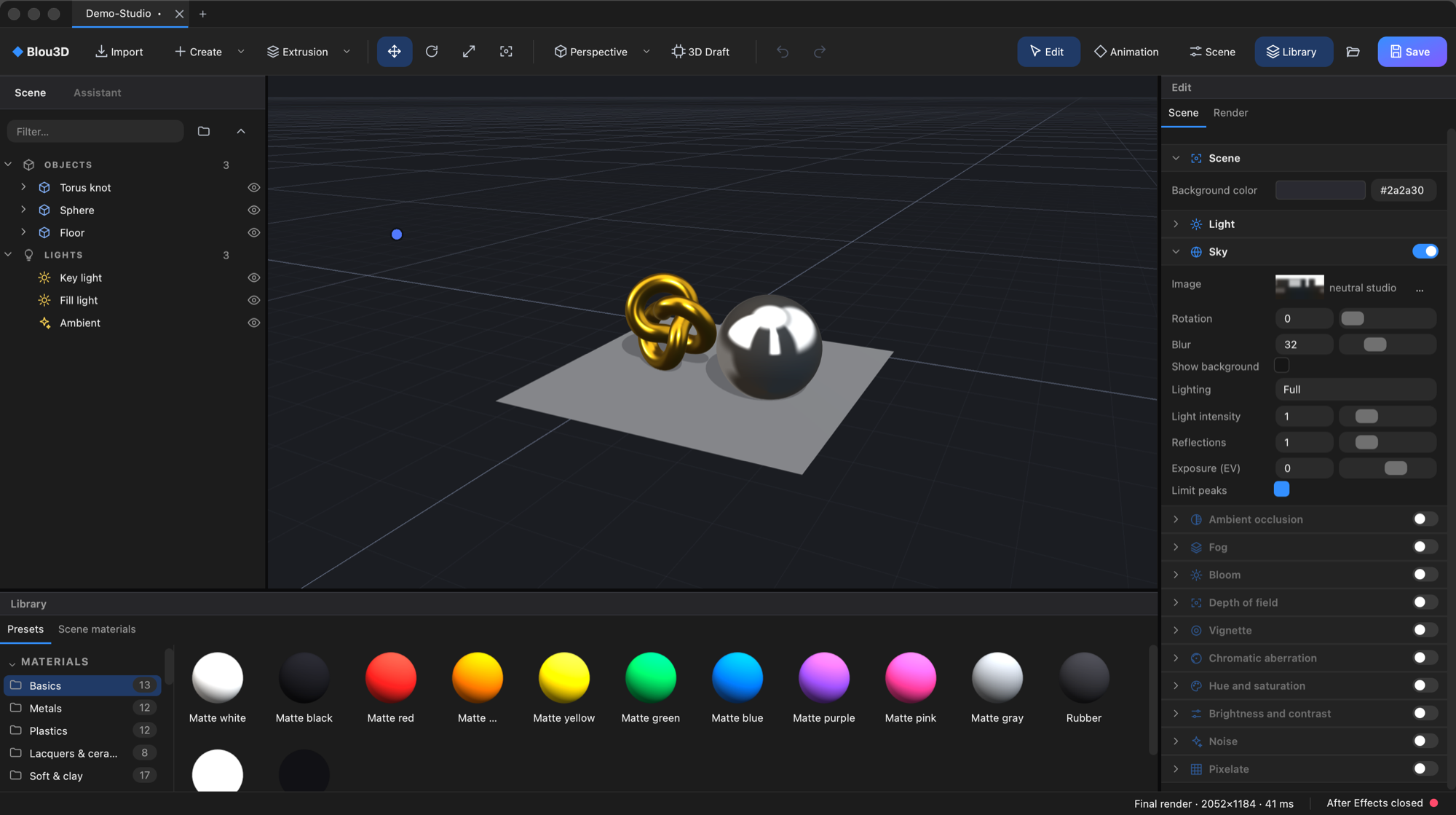
The window has five areas:
- Tab bar at the top: one tab per open scene. Click + to open a new one. A dot after the name means unsaved changes.
- Toolbar under the tabs.
- Scene panel on the left (with an Assistant tab).
- Viewport in the middle, where you see and manipulate the scene.
- Edit panel on the right, and the Library or Animation panel at the bottom.
At the bottom of the window, the status bar shows the selected object, the last render (resolution and time in ms) and the After Effects connection state.
The toolbar#

| Control | What it does |
|---|---|
| Polly3D | The brand mark. |
| Import | Imports a 3D model (OBJ, glTF/GLB, FBX, STL, PLY). ⌘ I. You can also drag a file into the window. See Importing models. |
| Create | One panel grouped by family: Primitives, Shapes to extrude, Generators (Wave, Terrain, Metaballs, Cloth), Boolean (Union, Subtract, Intersect of the selected objects) and Lights. See Objects and Generators and Booleans. |
| Extrusion | A menu: Text from AE… (3D text from After Effects), Path (pen) and Shape (pen). |
| Move / Rotate / Scale / Frame | The four manipulator tools (default keys W, E, R, F; see Preferences). |
| Perspective | The point of view menu: Perspective, Front, Back, Left, Right, Top, Bottom (keys 0 to 6). |
| 3D Draft | Fast preview in the viewport (see below). It never changes what After Effects renders. |
| Undo / Redo | ⌘ Z / ⇧ ⌘ Z. Every edit is an undo step; a drag is one step. |
| Edit / Animation | The two working modes (see below). |
| Scene | Opens the scene settings (Scene and Render tabs). |
| Open (folder icon) | Opens a scene. ⌘ O |
| Save | Saves the scene and refreshes After Effects. ⌘ S |
Edit mode and Animation mode#
- Edit is for building: the Library sits at the bottom.
- Animation is for timing: the keyframe timeline replaces the Library. See Animation panel.
3D Draft#
Turns the viewport into a fast preview: lower resolution, no shadow blur and no heavy effects. Use it on big scenes. It affects only the editor.
Panels#
Panels can be rearranged. Press the name of a panel (Scene, Assistant, Edit, Library, Animation) and drag to detach it as a floating window or dock it somewhere else; the rest of the title bar does nothing, so a stray click cannot move a panel. Every panel has the same title bar, with a ⋯ menu to move it to the left, the right or the bottom, or into a window of its own. The layout and window size are remembered as you change them; View > Reset workspace (or ⋯ > Reset workspace) puts everything back as it came. A panel can be squeezed to a narrow width (the Library puts its search on a line of its own), and a layout that would leave no room for the viewport is replaced by the default one at startup.
Floating windows exist too, with a rounded frame and a title bar: Environment, the texture channel window (double-click a texture thumbnail), the color picker (it stays open while you look at the scene), and the Text from AE window.
Numeric fields#
Every number in the Edit panel is a field you can drag, type or click:
- Drag left or right to change the value; the bar in the field shows where the value sits in its range.
- Hold ⇧ for finer steps, ⌥ for coarser ones.
- A single click selects the whole number so you can type over it. A value outside the slider range can still be typed.
- Right-click a value: Copy values, Paste values, Reset to default, and for linkable values the connector menu (see Connectors).
Right-click a section title (Transform, Diffuse…) to copy, paste or reset all the values of the section.
Colors#
A color swatch opens the color picker: a saturation/brightness square, a hue slider, Hex / RGB fields, an eyedropper and a palette of saved colors. Next to a color you can paste a hex code directly. The picker is not modal: it stays open while you watch the scene.
Undo and the scene file#
The document keeps a full undo history per scene tab. Closing a tab or the app with unsaved changes asks whether to save.